Overview
This guide details the necessary steps to establish SSO for Aha using BeanLogin.
The guide assumes that you already have an existing Aha Business subscription.
SSO Configuration in BeanLogin
| Create As Password-Vault App | Create As SAML App | User Provisioning Supported |
| Supported | Supported | Not Supported |
Below are the steps involved in configuration of SSO for PeopleHR within BeanLogin
- Login to BeanLogin as an Administrator.
- Navigate to Administration >> Access Management >> Corporate Apps.
- Click New.
- Select Aha from the list of apps and click it will give option whether to add as password-vault/SAML based on choice select the proper option and click on Add Selected Apps. It will add apps under corporate section with status as inactive.
- Click Aha app from Corporate Apps section and open in edit mode and enter your domain name.
- Click Download Metadata File button and keep that file with you.
- Submit.
SSO Configuration in Aha
- Sign in to your Aha account(e.g. https://apollomon.aha.io).
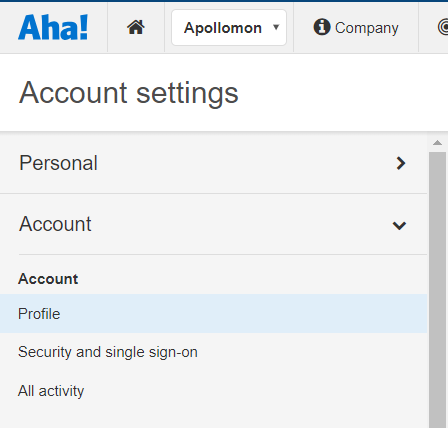
- From the Aha home page, click the Settings icon at upper right, then click Account.
- In the left menu, click Security and single sign-on.
- For Identity provider, choose SAML 2.0.
- For Name, enter BeanLogin.
- For Configure using, click Metadata file.
- Next to Metadata file, click Choose File, then locate and select the IDP metadata file you downloaded from BeanLogin setup screen.
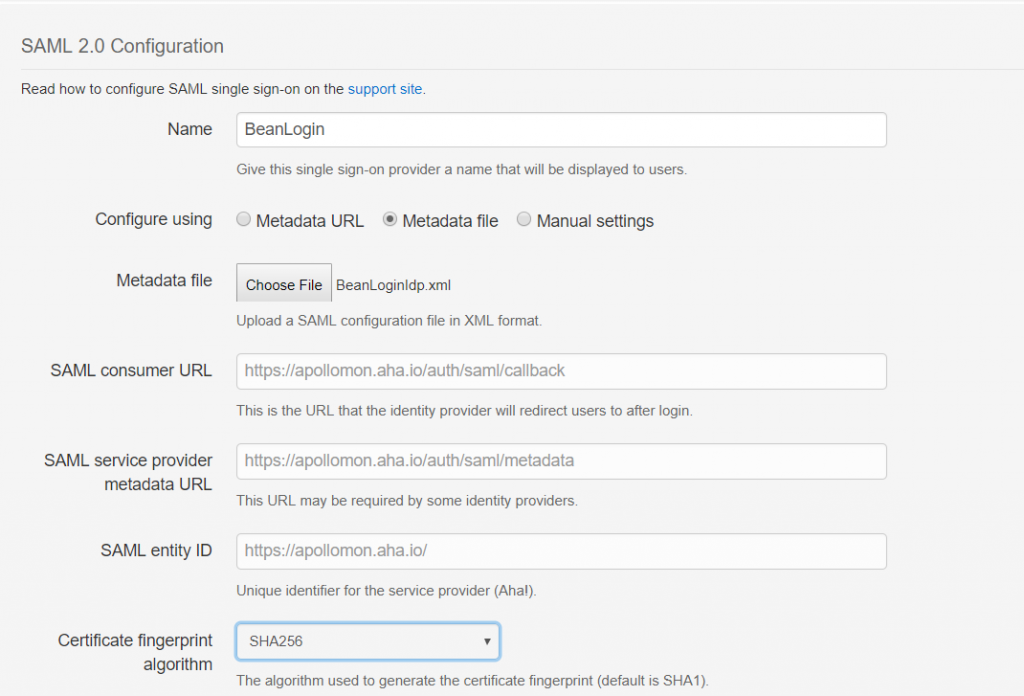
- Save.