Overview
This guide details the necessary steps to establish SSO for ZenDesk using BeanLogin.
The guide assumes that you already have an existing ZenDesk Business subscription.
SSO Configuration in BeanLogin
| Create As Password-Vault App | Create As SAML App | User Provisioning Supported |
| Supported | Supported | Supported |
Below are the steps involved in configuration of SSO for PeopleHR within BeanLogin
- Login to BeanLogin as an Administrator.
- Navigate to Administration >> Access Management >> Corporate Apps.
- Click New.
- Select ZenDesk from the list of apps and click it will give option whether to add as password-vault/SAML based on choice select the proper option and click on Add Selected Apps. It will add apps under corporate section with status as inactive.
- Click ZenDesk app from Corporate Apps section and open in edit mode and enter your domain name.
- Click Download Metadata File button and keep that file with you.
- Submit.
SSO Configuration in ZenDesk
- Sign in to your Aha account(e.g. https://apollomon.zendesk.com).
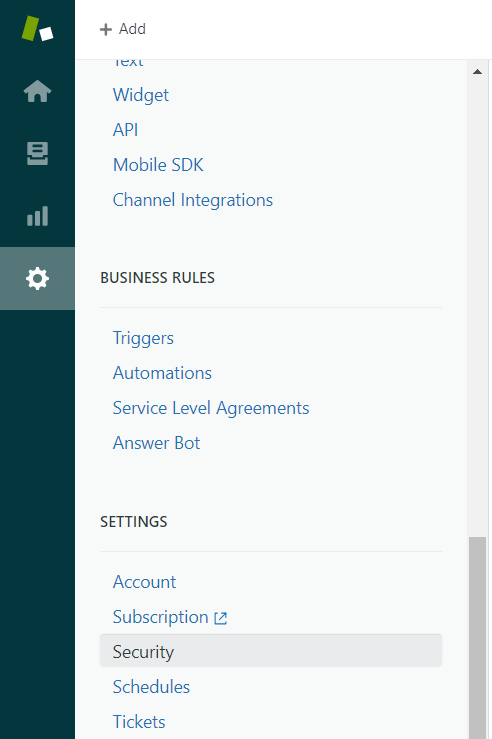
- Select the Admin icon, then select Security from the Settings category.
- From the Global tab, click on Manage security settings in Admin Center.
- Click on Single Sign On -> Configure SAML.
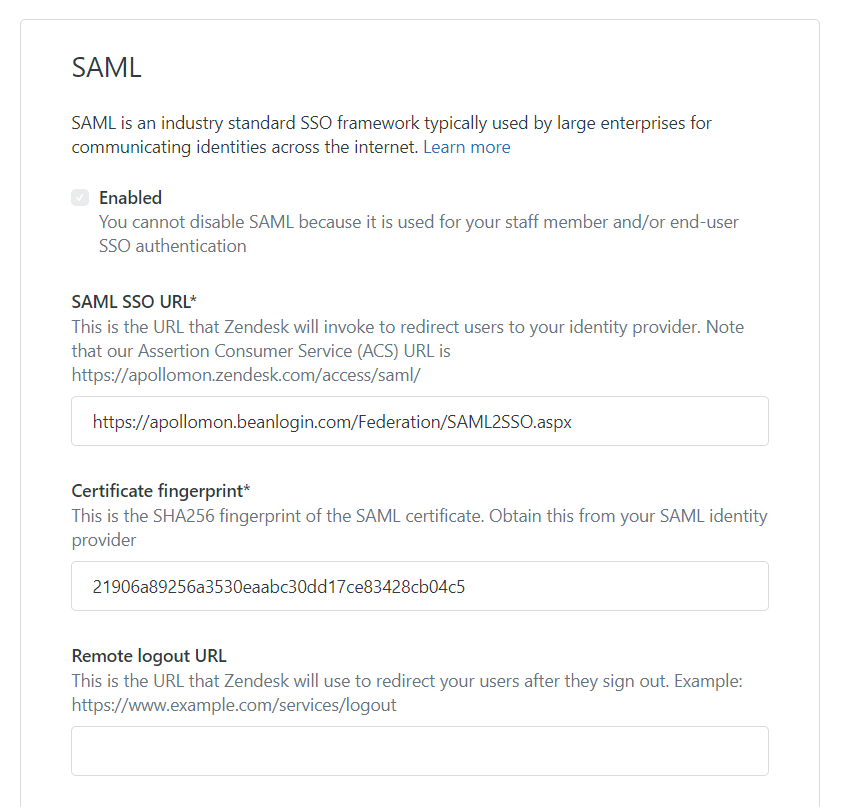
- Provide SAML SSO URL as https://host_name/Federation/SAML2SSO.aspx, host name is you current BeanLogin site host.
- Provide Certificate fingerprint as 21906a89256a3530eaabc30dd17ce83428cb04c5.
- Once this is done, go to Staff Members and set the External Authentication to Single Sing-On.
- Save.
Provisioning Configuration in BeanLogin
You can enable the provisioning from the two places
- From Corporate App Edit where you have last step as Provisioning.
- From Identity Management -> Endpoint Provisioning Section.
Once you enabled the provisioning don’t change any other value from page. Provide you admin cred in API and secret field and set authentication scheme to basic.